 Calculator Metro
Clever AI Humanizer
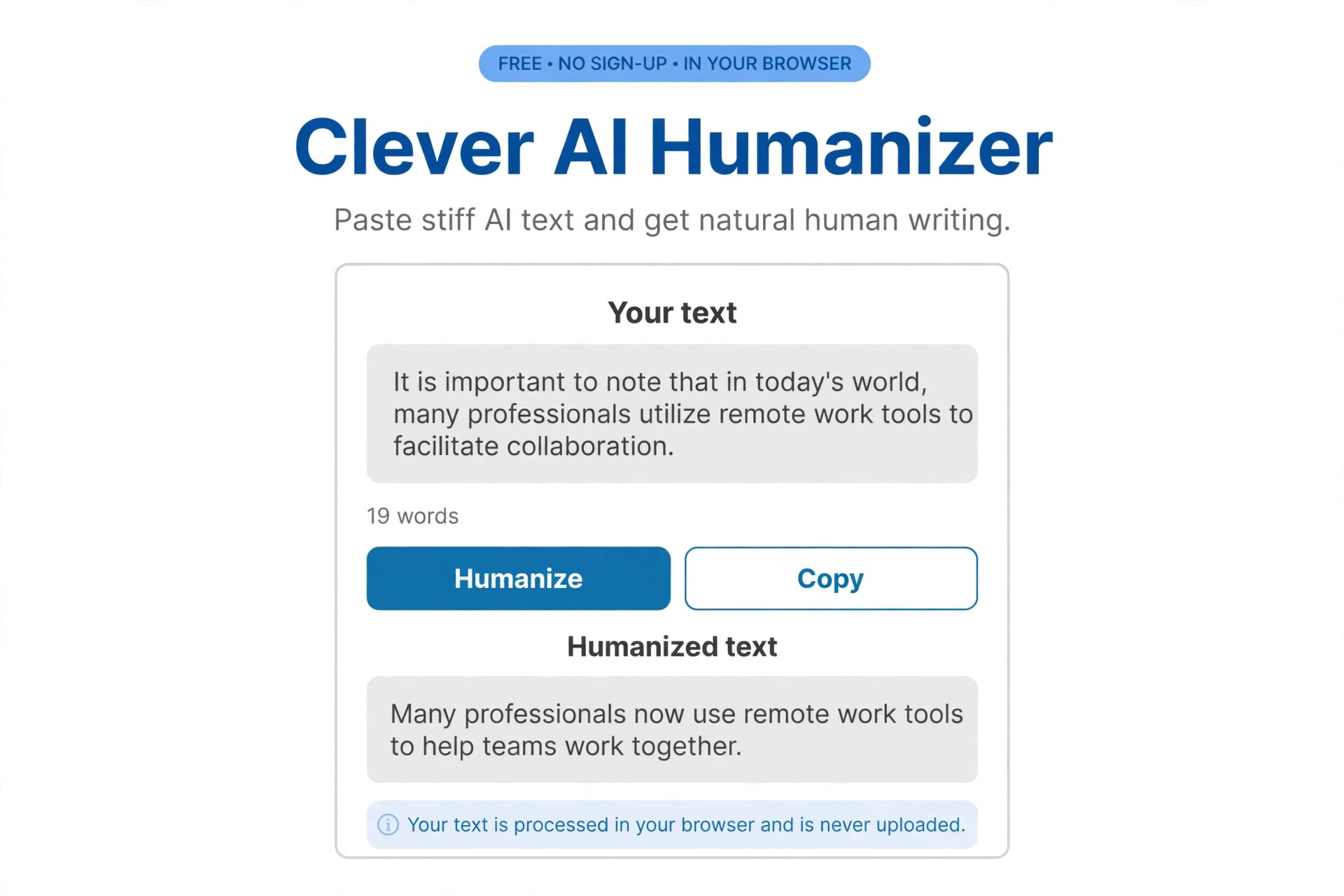
Turn stiff AI text into natural human writing. Paste your text below and press Humanize. Free, no sign-up, and your text never leaves your browser.
Humanize AI text free with this ai humanizer free tool. It runs in your browser. No sign-up is needed. No account is needed. Paste stiff AI text and get natural human writing in seconds. It is one of the free online tools to humanize AI text. This ai text humanizer works on any draft you paste. Some call it a clever humanizer AI tool. This page shows how to humanize AI text in three steps. It also shows what the tool changes and what it keeps. You can use it for a blog post, an email, or a school draft. This humanizer AI text tool runs free in your browser. Use AI to humanize text that sounds stiff and formal.
Humanize AI Text
Paste your text below, then press Humanize. The tool swaps stiff words for plain ones, adds contractions, cuts filler phrases, varies repeated sentence starts, and splits very long lines. Your text is processed in your browser and is never uploaded.
0 words
Tip: Read the output before you use it. The tool keeps facts, numbers, names, and dates exact, but a quick read catches any line that still sounds off.
How to Use This Tool
Three steps turn stiff AI text into natural writing.
- Paste your text. Copy a draft from ChatGPT, Claude, Gemini, DeepSeek, or any AI writer. Paste it in the box above. Long passages work fine.
- Press Humanize. The tool swaps stiff words for plain ones. It adds contractions. It cuts filler phrases. It varies repeated sentence starts. It splits very long lines.
- Copy and check. Press Copy, then paste the result where you need it. Read it once. Fix any line that still sounds off. Use it as often as you like.
Before and After: One Paragraph, Two Versions
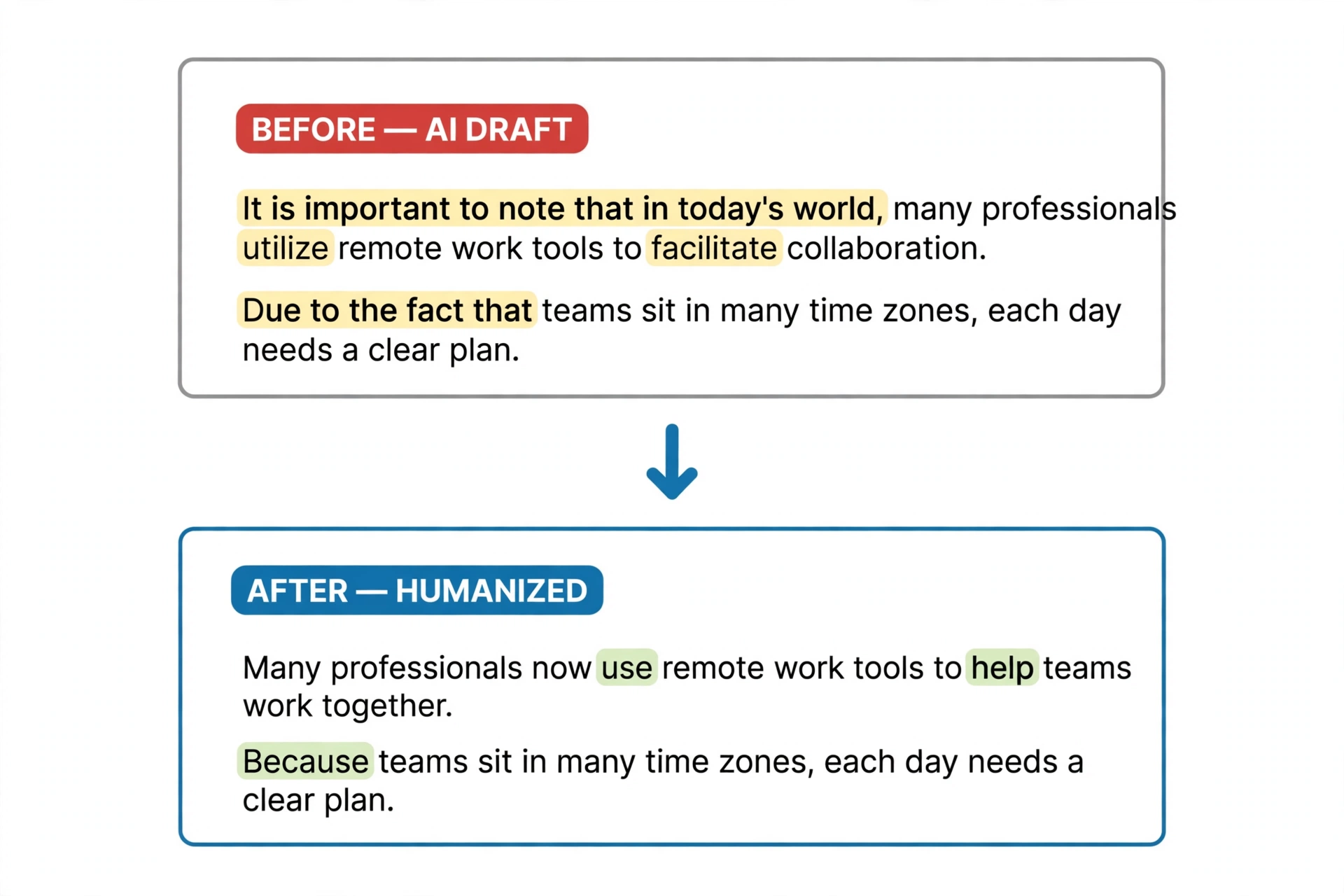
One example shows what the tool does. The before text is a stiff AI draft. The after text is the human version. This example shows how to humanize AI content in three steps. Paste the draft. Press Humanize. Read the result.
Before. It is important to note that in today’s world, many professionals utilize remote work tools to facilitate collaboration. Due to the fact that teams sit in many time zones, each day needs a clear plan. In addition, managers should demonstrate strong communication skills and commence meetings on time. When it comes to focus, it goes without saying that short breaks help workers stay productive. As a matter of fact, workers who take regular breaks complete more work each day.
After. Many professionals now use remote work tools to help teams work together. Because teams sit in many time zones, each day needs a clear plan. Also, managers should show strong communication skills and start meetings on time. Short breaks help workers stay productive. Workers who take regular breaks get more done.
The tool makes the swaps. You make the final call. The result is human AI text that reads like a person wrote it.
What Changed
- Three filler phrases are cut. They are “it is important to note that”, “in today’s world”, and “when it comes to”.
- Two more are cut: “it goes without saying that” and “as a matter of fact”.
- Stiff words become plain words. “Utilize” becomes “use”. “Facilitate” becomes “help”. “Demonstrate” becomes “show”. “Commence” becomes “start”.
- Long links become short links. “Due to the fact that” becomes “because”. “In addition” becomes “also”. “Complete more work” becomes “get more done”. Facts stay the same.
Free to Use: No Sign-Up, No Word Cap
This tool is free. It costs nothing. There is no sign-up and no account. There is no word cap. You can humanize AI text free unlimited runs. Use it as often as you like. You can humanize AI free, with no account and no cost.
The tool counts your words as you type. The count is a guide only. It does not block long text. Long passages work fine. For best results, work on one section at a time.
There is no paid plan on this page. There is no trial and no paywall. What you see is what you get.
This online AI humanizer tool runs in your browser. Nothing is sent to a server. Your draft stays on your device.
What Is an AI Humanizer?
An AI humanizer is a tool that rewrites machine-made text so it reads like a person wrote it. It does not change what you say. It changes how you say it. Stiff words become plain words. Long lines become short lines. Repeated starts become varied starts.
This tool is a small, focused version. It runs in your browser. It makes four changes: contractions, plain words, varied sentence starts, and filler cuts. It also splits very long lines. That is all it does, and it does it the same way each time.
Humanizing is not the same as paraphrasing. A paraphraser swaps words to say the same thing in a new way. A humanizer fixes tone. It keeps the meaning and makes the voice sound natural.
Why Humanize AI Text?
AI drafts save time, but they often read the same. They use the same stiff words. They start sentences the same way. They pile on filler phrases. Readers notice. A humanized draft reads like a person wrote it. It keeps the facts. It drops the robot voice.
- Readers stay longer. Natural lines are easier to read than stiff ones.
- Your voice comes through. Plain words sound like you, not like a template.
- Editing gets faster. A polished draft needs fewer fixes than a stiff one.
Who Uses This Tool?
Different writers use this tool in different ways. Pick your type below. Each type shows one use and one tip.
For Students and Essays
Students use the tool to polish essays. It helps an essay read more like the student wrote it. Use it on drafts you wrote yourself. Write your own ideas first. Then polish the tone. This is the honest way to use an ai humanizer for students. It is one of the ai humanizer tools for essays that students use to polish drafts.
For SEO and Bloggers
Bloggers use the tool on AI drafts for posts. It gives a post a natural voice so readers stay with it. A post should feel like a chat, not a report. Polish one post at a time. Check facts first. The tool polishes tone, not facts.
For Emails and Work Notes
Teams use the tool for work notes and reports. A work note should be clear and warm. Paste the draft. Press Humanize. Read the result aloud. Fix any line that still sounds off. Send it only when it sounds like you.
For Marketing and Social Copy
Marketers use the tool on ads, captions, and landing copy. Short lines work best on social. Keep your brand voice. If the tool swaps a word you like, put your word back. Mix short and long lines.
For Resumes and Cover Letters
Job seekers use the tool on resume bullets and cover letters. Use it to humanize AI for resume drafts and cover letters. You can humanize AI resume bullets before you send them to a hiring manager. Keep the facts exact. A resume must stay true.
How This Tool Compares
Many tools humanize AI text. They differ on cost, limits, and sign-up. The table below shows the split. Our tool is in the first row. The other rows show typical ranges. Check each tool’s own page before you pay.
Search results list many clever AI humanizers, but most cap free words per run.
| Tool | Cost | Words per run | Sign-up | Languages |
|---|---|---|---|---|
| This tool | Free | No cap | No | English |
| Typical free tools | Free tier | Often 500 to 1,200 | Often yes | Often many |
| Typical paid tools | Paid plan | Higher limits | Yes | Often many |
Is this the best AI humanizer for free use? Compare the table and judge by the facts. Our cost, cap, sign-up, and language facts come from this page. The other rows are typical ranges, not one vendor’s price list.
Humanizer vs Paraphraser vs Rewriter
A humanizer, a paraphraser, and a rewriter do different jobs. A humanizer fixes tone. It cuts stiff phrases and adds plain words. A paraphraser swaps words to say the same thing in a new way. It may keep the stiff tone. A rewriter makes a fresh draft from a prompt or a short brief. A rewriter may change the structure too. Use a humanizer when your draft is right but sounds stiff. Use a paraphraser when you need a new wording of one line. Use a rewriter when you need a fresh draft.
What This Tool Changes
The tool makes four kinds of changes to your text. It adds contractions. It swaps stiff words for plain ones. It cuts filler phrases. It varies repeated sentence starts. It also splits very long lines. Here is what each change looks like.
Here is the short version. The table shows what changes and what stays the same.
| What Changes | What Stays the Same |
|---|---|
| Stiff words become plain words | Facts and numbers stay exact |
| Filler phrases are cut | Names and dates stay exact |
| Contractions are added | Links stay exact |
| Repeated sentence starts vary | Meaning stays the same |
| Very long lines are split | Formatting stays the same |
Contractions
Long forms become short forms. The tool turns do not into don’t and it is into it’s. It handles the common pairs, like can not, will not, and should not. Short forms sound more like speech.
Plain Words
Formal words become everyday words. Utilize becomes use. Facilitate becomes help. Demonstrate becomes show. Commence becomes start. Due to the fact that becomes because. The meaning stays the same. The words get simpler.
Filler Phrases
Five filler phrases are cut. The list is it is important to note that, in today’s world, when it comes to, it goes without saying that, and as a matter of fact. Each one adds words without adding meaning. Cutting them makes the line shorter and stronger.
Repeated Starts
Many AI drafts start sentence after sentence with the same word. The tool spots three in a row and varies the third. The first two stay as they are. The change is small, but it breaks the flat rhythm.
Long Lines
Very long lines are split in two. The tool looks for a line over 32 words. It finds a joining word like and, but, so, or because. It splits the line there. The second part starts with that word, now capitalized. Short lines are easier to read.
Styles: One Style, Applied the Same Way Each Time
This tool has no mode menu and no tone picker. It has one style. It applies the same four changes to every draft. The changes are contractions, plain words, varied starts, and filler cuts. One click runs the clever AI humanize step.
You set the tone by editing the output. Keep a line formal if the draft needs it. Make a line warm if the reader needs it. The tool gives you a plain base. You shape the voice.
Which Languages Does It Support?
This tool works in English only. Its word lists are English. It swaps English words for plain English words. It adds English contractions. It has no language picker and no translation step.
Paste English text for the best result. Other languages will pass through mostly unchanged. The tool will not translate them.
Works With ChatGPT, Claude, Gemini, and DeepSeek Output
This tool works on drafts from any AI writer. ChatGPT drafts often say “delve into” and end with three-point conclusions. Claude drafts often hedge. Gemini drafts often use elevated vocabulary. DeepSeek drafts often read like a report. The tool cuts the same stiff phrases in each one. Paste any draft and press Humanize.
Tips for Natural Results
The tool gives you a plain base. You shape the final voice. These tips help.
- Read the output aloud. If a line sounds stiff, change it by hand.
- Keep your facts. Check names, numbers, and dates before you use the text.
- Work in sections. Long drafts are easier to check in parts.
- Keep words you like. If the tool swaps a word you want, put your word back.
- Mix short and long lines. A mix of line lengths sounds more human than lines that are all the same.
AI Humanizer vs AI Detector
An AI detector and humanizer serve two different needs. A humanizer improves how text reads. It makes stiff lines sound natural. A detector tries to guess if text came from AI. It looks for flat tone and repeated words.
These are the detectors people check most: GPTZero, Turnitin, Originality.ai, Copyleaks, and ZeroGPT. Each one scores text in its own way. Each one changes its rules often. A text that reads human to one may still score as AI to another.
No tool can honestly guarantee a score. This tool is not intended to bypass AI detectors. We make no promise about what any AI detector will say. Humanizing your text can help it read better. Some detectors may rate it as more human. But no humanizer can guarantee that any detector will pass a text.
No rewrite can humanize AI detector scores on demand. Use this tool to improve how your writing reads, not to fool a checker. Write your own ideas, use AI as a helper, and be honest about how you made your work.
Privacy and Responsible Use
Your text is processed in your browser. It is never uploaded. It is never sent to a server. The tool keeps no copy of your text. It has no account and no history. You can use it for private drafts with no worry.
Use It Honestly
Do not hand in work as your own where AI is not allowed. Using a humanizer to disguise AI use in school can count as cheating. It can count as plagiarism too. Cite AI use where your school asks for it. Follow your school policy. The same rule fits work. Follow your workplace rules too.
Is this tool good? It is good at readability and tone. It swaps stiff words and adds contractions. It does not grade facts. It does not promise detector results. Judge it on how your text reads, not on a detector score.
Frequently Asked Questions
Is Clever AI Humanizer free?
Yes. This humanizer ai free tool costs nothing. You can use it as often as you like. There is no sign up and no account. Just paste your text and press Humanize.
Is Clever AI Humanizer good?
It improves how text reads. It swaps stiff words and adds contractions. Results vary by draft. It makes no detector promises.
Is my text uploaded?
No. The tool runs in your browser. Your text is processed on your device and is never sent to a server. You can use it for private drafts with no worry.
What does the tool change?
It adds contractions. It swaps stiff formal words for everyday ones. It trims filler phrases. It varies repeated sentence starts. It splits very long lines. It does not change the meaning of your text.
Will this help me pass an AI detector?
It may help your text read more like a person wrote it, but no tool can promise detector results. Detectors score text in different ways and change often. Use this tool to improve how your writing reads.
Can I use it for school or work?
Yes. Use it to polish drafts you wrote. Write your own ideas first, then use the tool to make the tone more natural. Be honest about how you made your work, and follow the rules of your school or workplace.
Is using a humanizer cheating?
It depends on the rules where you use it. Polishing a draft you wrote is fine in most cases. Hiding AI use where AI is not allowed can count as cheating. Cite AI use when your school or workplace asks for it. Follow their rules.
Does it change my meaning or facts?
No. The tool changes tone, not meaning. It swaps words and cuts filler. It keeps facts, numbers, names, and dates exact. Read the output before you use it. Fix any line that still sounds off.
Do you store my text?
No. The tool runs in your browser. It keeps no copy of your text. It has no account and no history. Your text is never sent to a server.
What languages are supported?
English only. The tool swaps English words for plain English words. It has no language picker. Paste English text for the best result.
How is it different from a paraphraser?
A humanizer fixes tone. A paraphraser swaps words to say the same thing in a new way. A humanizer cuts stiff phrases and adds plain words. A paraphraser may keep the stiff tone. Use a humanizer when your draft is right but sounds stiff.
What is the word limit?
There is no set word limit. The tool counts words as you type. The count is a guide only. It does not block long text. For best results, work on one section at a time.
Can I humanize a PDF?
No. This tool has no file upload. Paste your text into the box instead. Copy the text from your PDF first, then paste it here.